2. Creating cycling protocols#
Note
If you have already created the necessary protocols, you may proceed with constructing experiments in the next step.
To cycle a battery, you need to provide the cycler with instructions - a cycling protocol. This page will guide you through constructing cycling protocols using Aurora’s protocol editor feature.
First, navigate to the Protocols section of the Inventory.
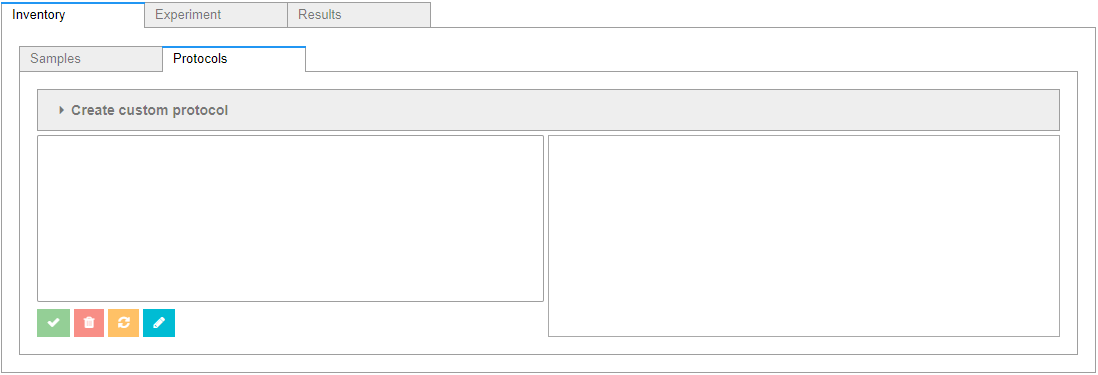
Expand Create custom protocol to open the editor.
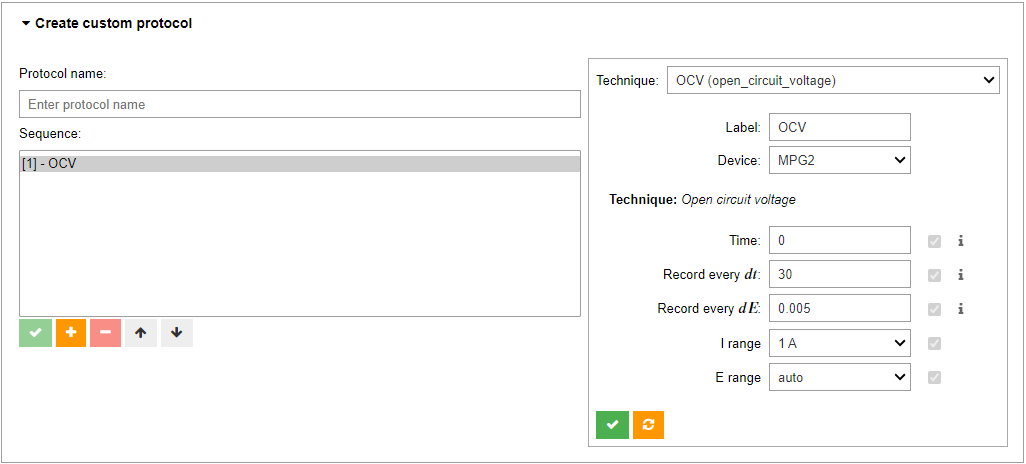
A cycling protocol contains one or more cycling techniques, such as Open Circuit Voltage (OCV), Constant Current (CC), and loop. By default, the editor starts with OCV. You can modify techniques in the panel to the right. You can save or reset changes to a technique with the buttons at the bottom of the right panel.
On the left, controls are provided to add, remove, or reorder techniques. Once the protocol is ready, provide a name (alphanumeric + underscore only) and click the save button (✅) below the sequence box. The protocol will appear in the panel below. Clicking on any of the available protocols will toggle a preview to the right.

Important
Protocols are not yet saved to the local cache. To do so, click the save button (✅) at the bottom left corner of the Protocols tab. Alternatively, to reset changes, click on the refresh button (🔄️).
Once a protocol is saved, it is immediately available for selection in the Experiment tab. More on this in a later section.
2.1. Additional Operations#
This section covers the remaining operations that may be taken on available protocols in the inventory. After each operation, remember to either save or reset your changes.
2.1.1. Editing#
You may edit an existing protocol by selecting it and clicking the edit button (✏️). This will populate the editor with the selected protocol, giving you the opportunity to make modifications to its sequence and individual technique properties. When ready, save the protocol by clicking the save button (✅) in the protocol editor panel.
2.1.2. Deleting#
Lastly, to delete a protocol, select it and click the delete button (🗑️). Once the deletion is accepted by saving the changes, the protocol will no longer be available for selection when preparing experiments.